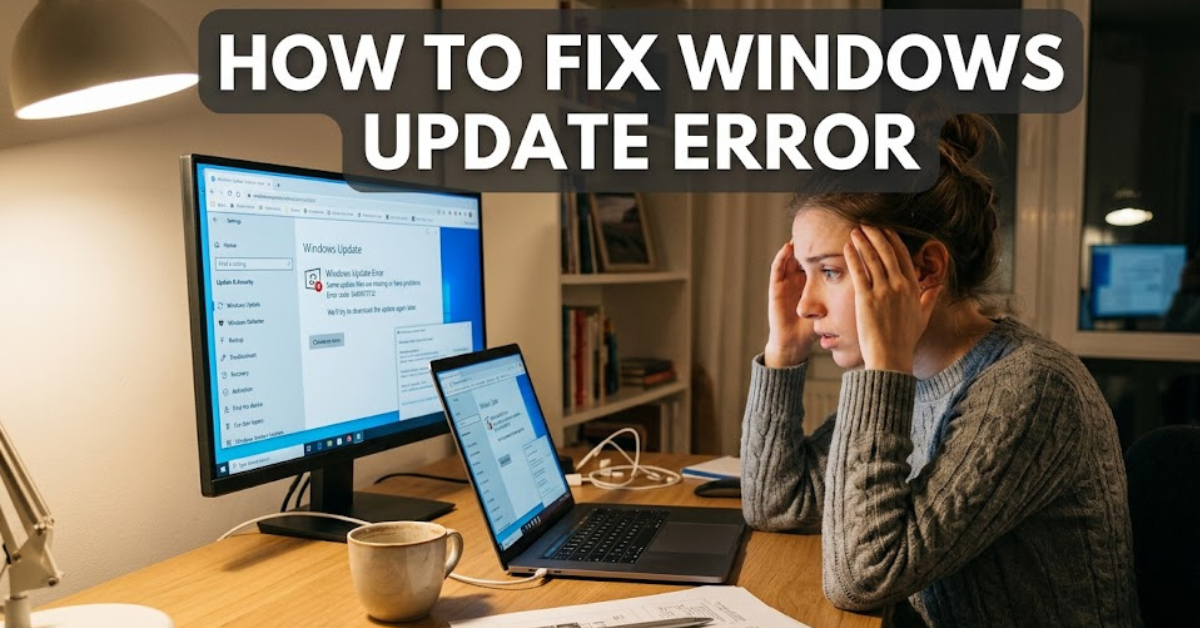
Nothing is more frustrating than seeing a Windows update fail when your computer is trying to install important security patches or new features. Whether you’re encountering a generic update failure or specific codes like 0x8007371b or 0x800f081f, knowing how to fix Windows Update error problems can save you hours of frustration.
Windows updates play a crucial role in maintaining system security, improving performance, and fixing software bugs. When updates stop working, your computer may become vulnerable to security risks or miss out on important features. Fortunately, most Windows Update issues can be resolved with a few proven troubleshooting methods.
In this guide, you’ll learn how to fix Windows Update errors, understand common causes, and troubleshoot specific error codes effectively.
Why Windows Update Errors Occur
Before learning how to fix Windows Update, it’s helpful to understand why these errors happen.
Common causes include:
- Corrupted system files
- Damaged update components
- Insufficient disk space
- Internet connection problems
- Driver conflicts
- Antivirus interference
- Incomplete previous updates
Identifying the root cause often makes troubleshooting much easier.
Common Signs of a Windows Update Error
You may be dealing with a Windows Update issue if you notice:
- Updates stuck at a certain percentage
- Installation failures
- Repeated restart loops
- Error codes appearing during updates
- Slow system performance after update attempts
- Messages stating “Update Failed”
These symptoms often indicate a problem with update services or system files.
How to Fix Windows Update Error: Basic Solutions First
Start with the simplest fixes before moving to advanced troubleshooting.
Restart Your Computer
A restart can resolve temporary glitches affecting update services.
Why it works:
- Clears temporary files
- Resets system processes
- Removes software conflicts
After restarting, try running Windows Update again.
Check Your Internet Connection
Windows updates require a stable internet connection.
Verify:
- Wi-Fi connectivity
- Router performance
- VPN settings
- Firewall restrictions
An unstable connection can interrupt downloads and installations.
Free Up Disk Space
Windows updates need sufficient storage space.
Delete:
- Temporary files
- Unused applications
- Old downloads
- Recycle Bin contents
Low storage is a surprisingly common cause of update failures.
Run the Windows Update Troubleshooter
Microsoft includes a built-in troubleshooting tool specifically for update problems.
How to Access It
- Open Settings.
- Select System.
- Click Troubleshoot.
- Choose Other Troubleshooters.
- Run Windows Update Troubleshooter.
The tool automatically detects and fixes many common update issues.
Restart Windows Update Services
Update services occasionally stop working correctly.
Steps to Restart Services
- Press Windows + R.
- Type
services.msc. - Locate:
- Windows Update
- Background Intelligent Transfer Service (BITS)
- Restart both services.
This often resolves stalled update processes.
How to Fix Windows Update Error 0x8007371b
One of the more common update issues is Windows Update error 0x8007371b.
What Causes Error 0x8007371b?
This error is frequently linked to:
- Corrupted update files
- Damaged system components
- Interrupted update installations
Solution: Run System File Checker
Open Command Prompt as Administrator and run:
sfc /scannowThis scan checks for corrupted Windows system files and repairs them automatically.
Run DISM Tool
After SFC completes, run:
DISM /Online /Cleanup-Image /RestoreHealthDISM repairs the Windows image used by the update system.
How to Fix Windows Update Error 0x800f081f
Another frequently reported issue is Windows Update error 0x800f081f.
Common Causes
This error often occurs when:
- System files are missing
- .NET Framework components are corrupted
- Windows installation files are unavailable
Install Missing Features
Open an elevated Command Prompt and run:
DISM /Online /Cleanup-Image /RestoreHealthIf needed, use a Windows installation ISO as the repair source.
Repair .NET Framework
The .NET Framework is often involved in this error.
You can:
- Enable missing .NET features
- Reinstall .NET components
- Use Microsoft’s repair tools
Reset Windows Update Components
If updates continue failing, resetting update components may help.
Stop Update Services
Run Command Prompt as Administrator and execute:
net stop wuauserv
net stop bits
net stop cryptsvc
Rename Update Folders
Rename:
- SoftwareDistribution
- Catroot2
These folders store update files and may become corrupted.
Restart Services
Run:
net start wuauserv
net start bits
net start cryptsvc
Then check for updates again.
Check for Driver Conflicts
Outdated drivers can interfere with updates.
Focus on:
- Graphics drivers
- Network drivers
- Storage controllers
Use Device Manager to identify and update problematic drivers.
Temporarily Disable Antivirus Software
Security software occasionally blocks update installations.
Before disabling protection:
- Disconnect from risky websites
- Keep the process brief
- Re-enable antivirus immediately afterward
If updates install successfully, your antivirus settings may require adjustment.
Perform a Clean Boot
A clean boot starts Windows with minimal services.
Benefits
It helps identify:
- Software conflicts
- Startup issues
- Third-party interference
If updates work in a clean boot environment, another program is likely causing the problem.
Advanced Repair Options
If standard fixes fail, consider:
In-Place Upgrade Repair
This reinstalls Windows while preserving:
- Files
- Applications
- Personal settings
System Restore
If the problem began recently, restoring the system to an earlier state may help.
Reset This PC
As a last resort, Windows can be reset while optionally preserving personal files.
Tips to Prevent Future Windows Update Errors
Preventive maintenance reduces future update issues.
Keep Drivers Updated
Current drivers improve compatibility and stability.
Maintain Free Storage Space
Aim to keep at least 20–30 GB available.
Avoid Interrupting Updates
Never force shutdowns during update installation.
Perform Regular System Scans
Routine maintenance can identify corruption before it affects updates.
Frequently Asked Questions
Why does Windows Update keep failing?
Common causes include corrupted files, network problems, insufficient storage, or damaged update components.
How do I fix Windows Update error 0x8007371b?
Run System File Checker (SFC) and the DISM repair tool to repair damaged system files and Windows images.
How do I fix Windows Update error 0x800f081f?
Use DISM, repair .NET Framework components, and verify that required installation files are available.
Is it safe to reset Windows Update components?
Yes. Resetting update components is a standard troubleshooting method recommended for persistent update failures.
Can antivirus software cause update errors?
Yes. Some security programs may interfere with update downloads or installations.
What should I do if none of the fixes work?
Consider an in-place upgrade repair, System Restore, or contacting Microsoft Support for advanced troubleshooting.
Conclusion
Learning how to fix Windows Update error issues can help keep your computer secure, stable, and up to date. Whether you’re dealing with a general update failure, how to fix Windows Update error 0x8007371b, or how to fix Windows Update error 0x800f081f, most problems can be resolved through systematic troubleshooting.
Start with simple solutions such as restarting your computer and running the Windows Update Troubleshooter. If the issue persists, move on to advanced repairs like SFC, DISM, resetting update components, or performing a repair installation.
Keeping your Windows installation healthy, maintaining adequate storage space, and regularly updating drivers will go a long way toward preventing future update problems. By following the steps in this guide, you’ll be better equipped to resolve update issues quickly and keep your PC running smoothly.